Saved Points
Save, manage and jump to stored positions on the membrane.
The saved points section on the home tab lets you store interesting positions on the membrane. The key benefit is that these points are also translated to their stretched variants. This means you can mark a point of interest, save it, run a protocol and afterward return to each point to easily document the before and after state, even if the membrane is now at a different width than it originally was. It also combines well with pausing protocols, so you can inspect points once a certain part of a protocol has finished.
Creating a point
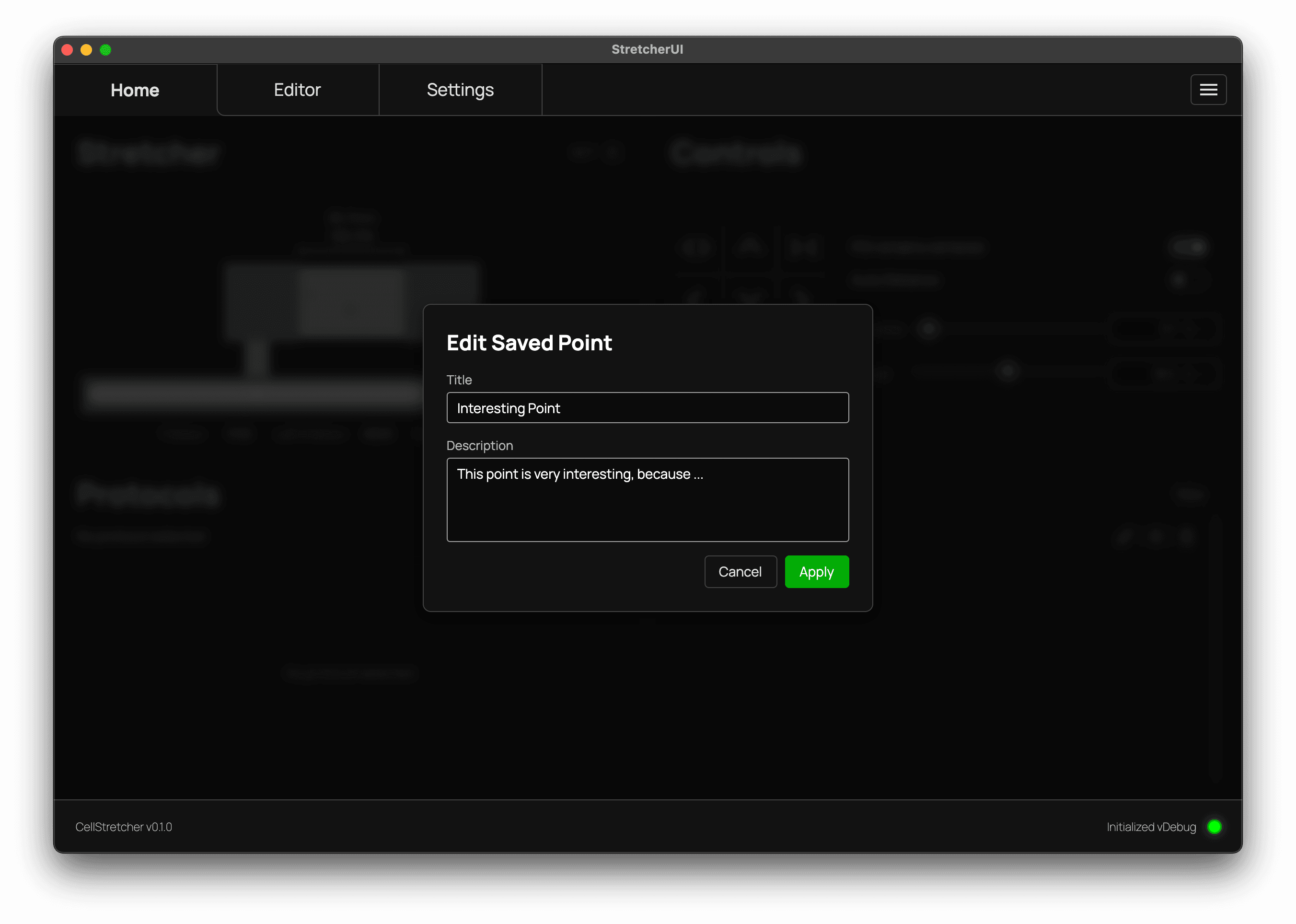
To create a point, press the "New" button or use the matching shortcut. A new entry then appears in the list below.
Naming and describing points
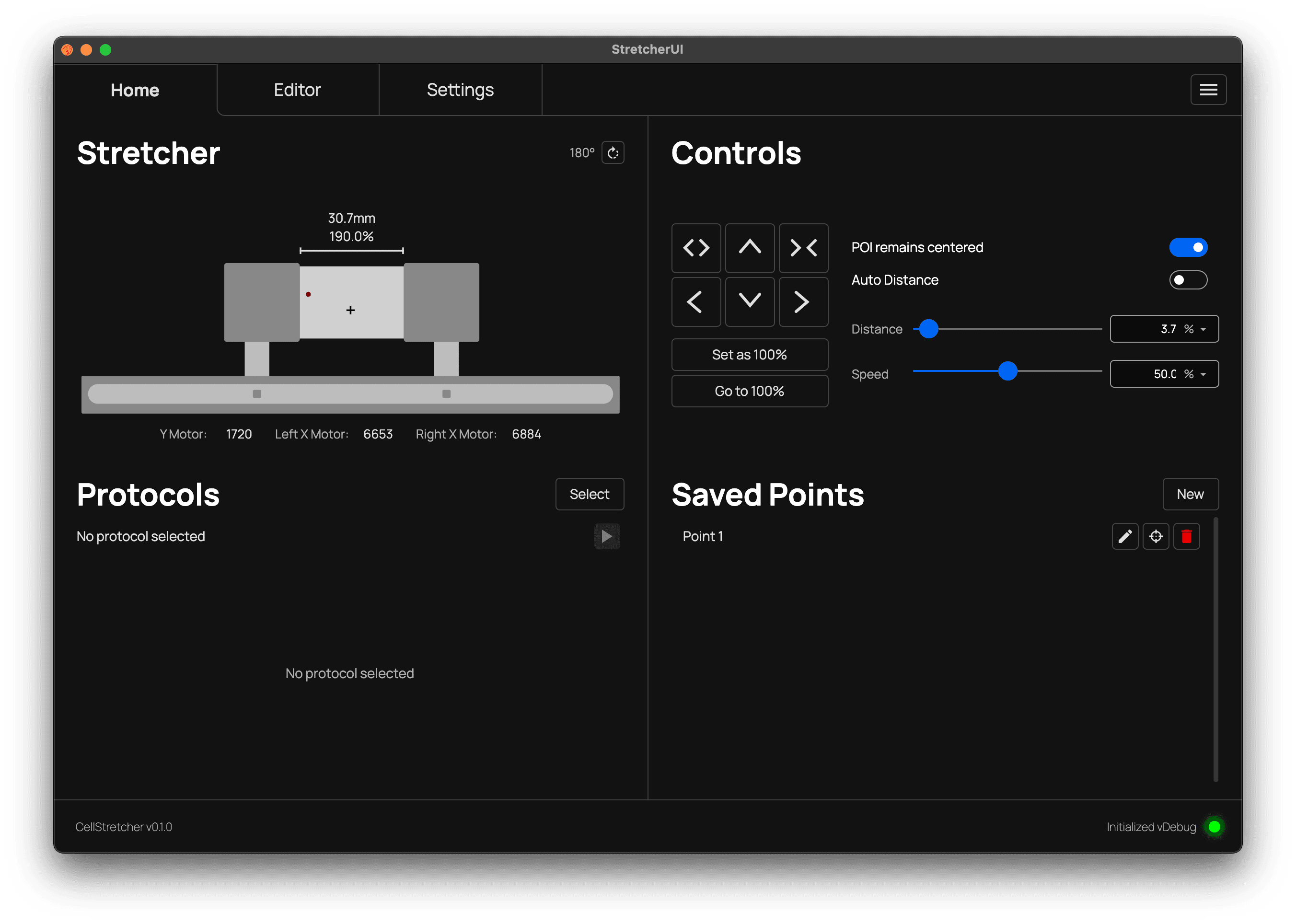
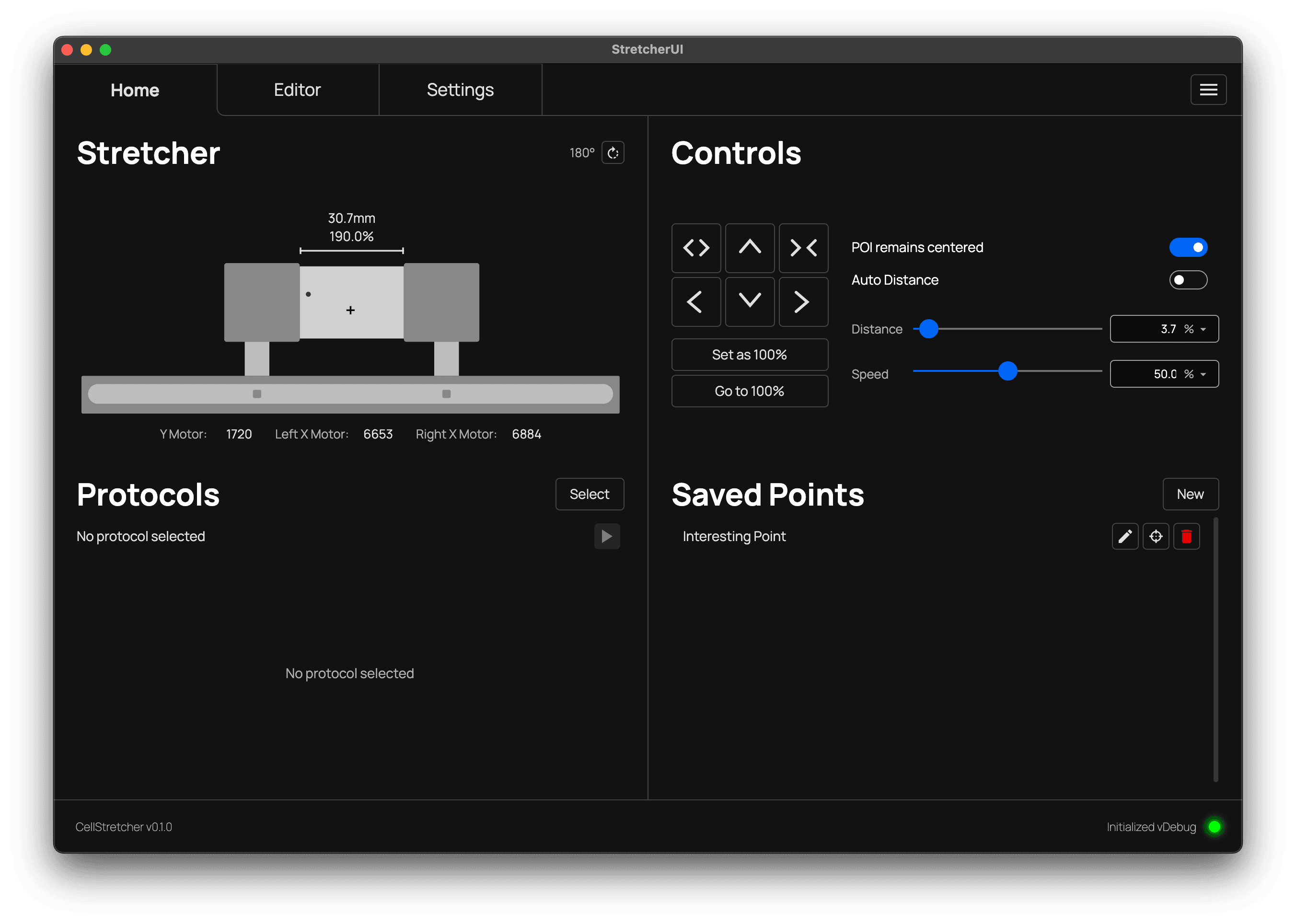
Each point can be individually named and given a description. This is helpful when you are saving multiple points on a single membrane and need to tell them apart.
Driving to a point
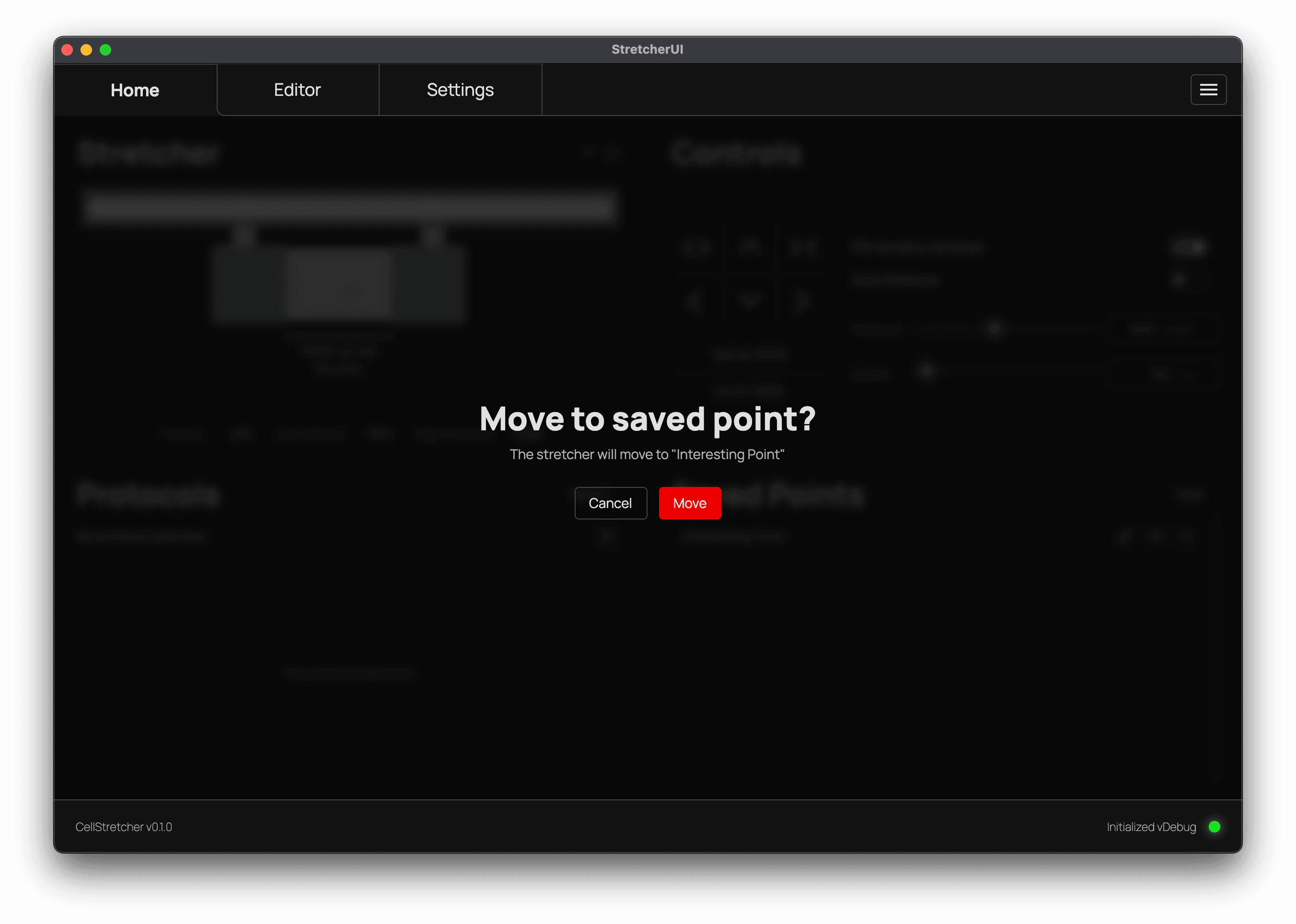
Using the target icon on a saved point entry, you can drive the stretcher to that position. Because this moves you away from your current position, where you may lose an unsaved but important spot, the action is protected by a confirmation dialog.
Deleting a point
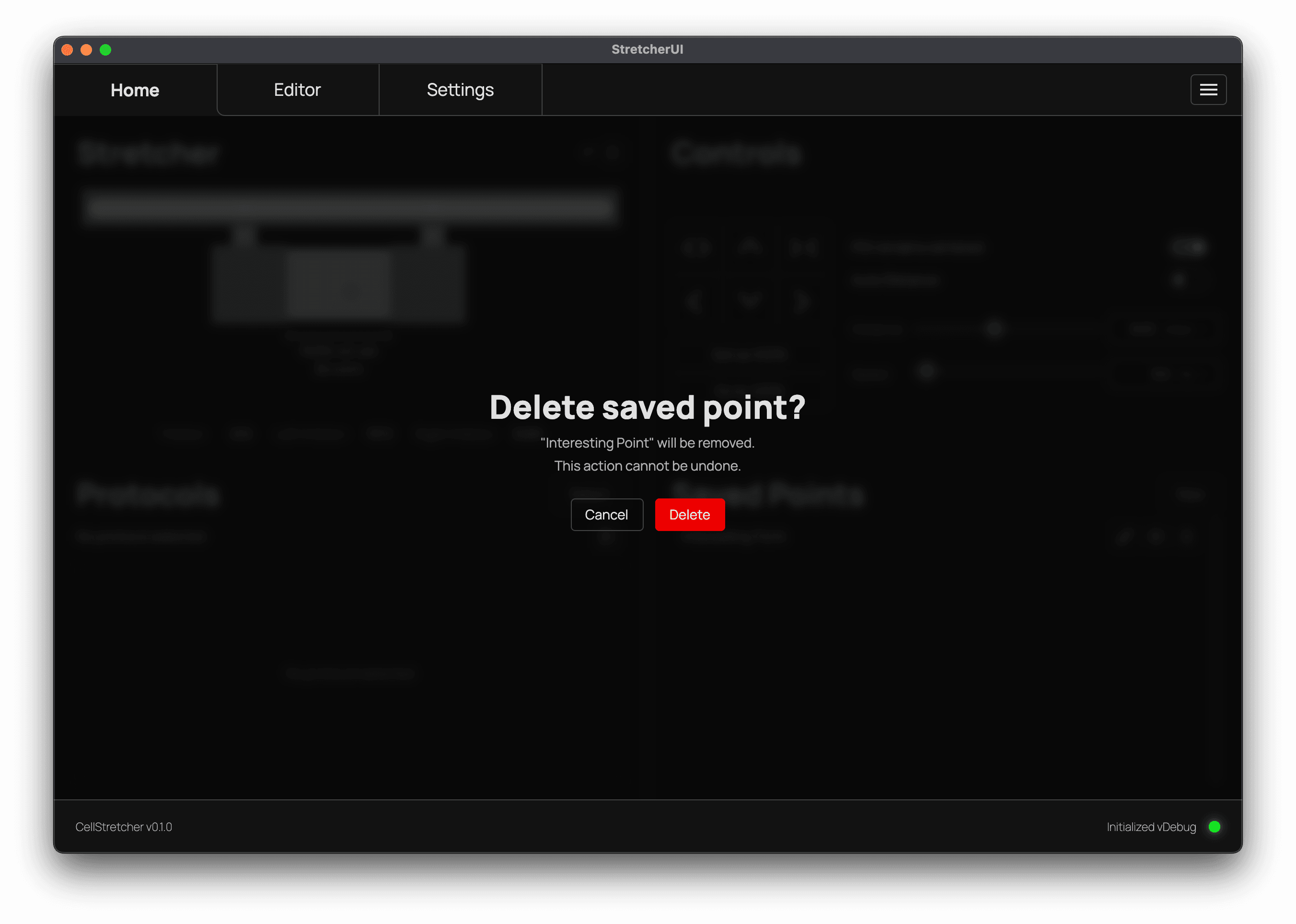
Deleting a point is protected in the same way. Because the point would be lost permanently, the action is confirmed with a dialog before it is removed from the list.
Do I need to delete all points after use?
No. Points are not persisted and are gone after a software restart. They are membrane specific and would no longer be useful after switching membranes.