Managing Protocols
Import, load, rename and delete your stretch protocols.
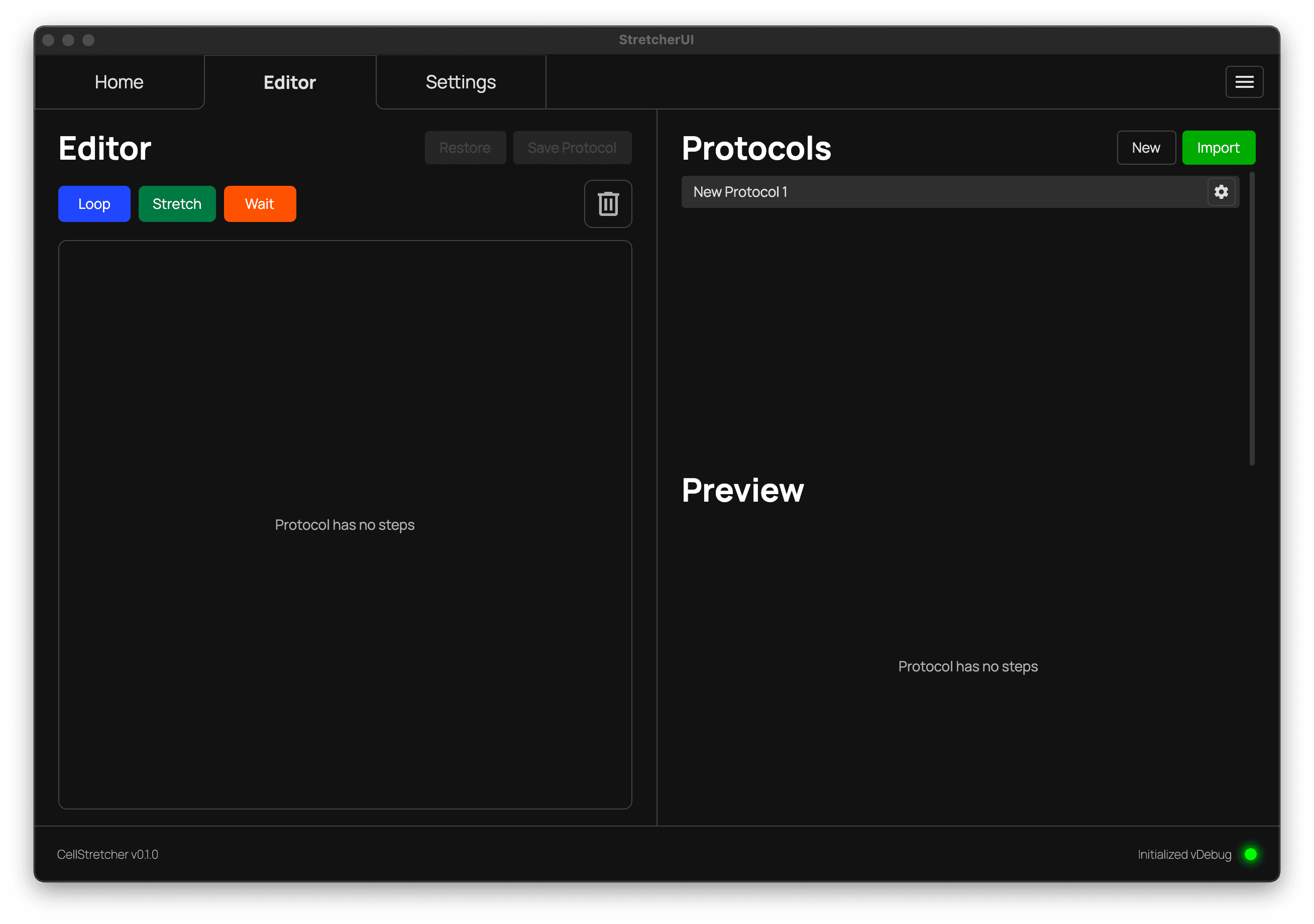
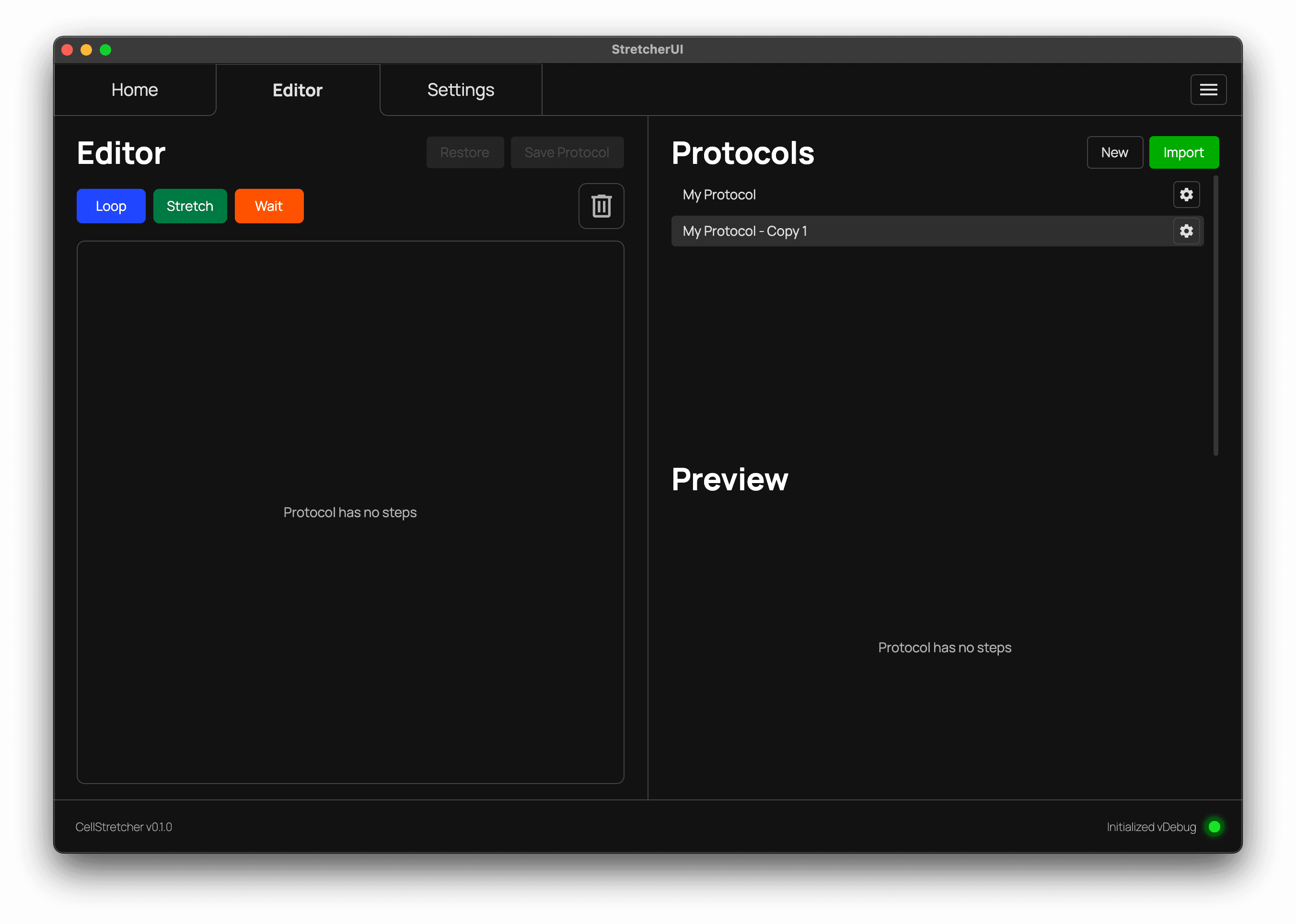
In the top right section of the editor you can manage all of your protocols. From here you can create new protocols, import existing ones and rename, duplicate, export or delete them.
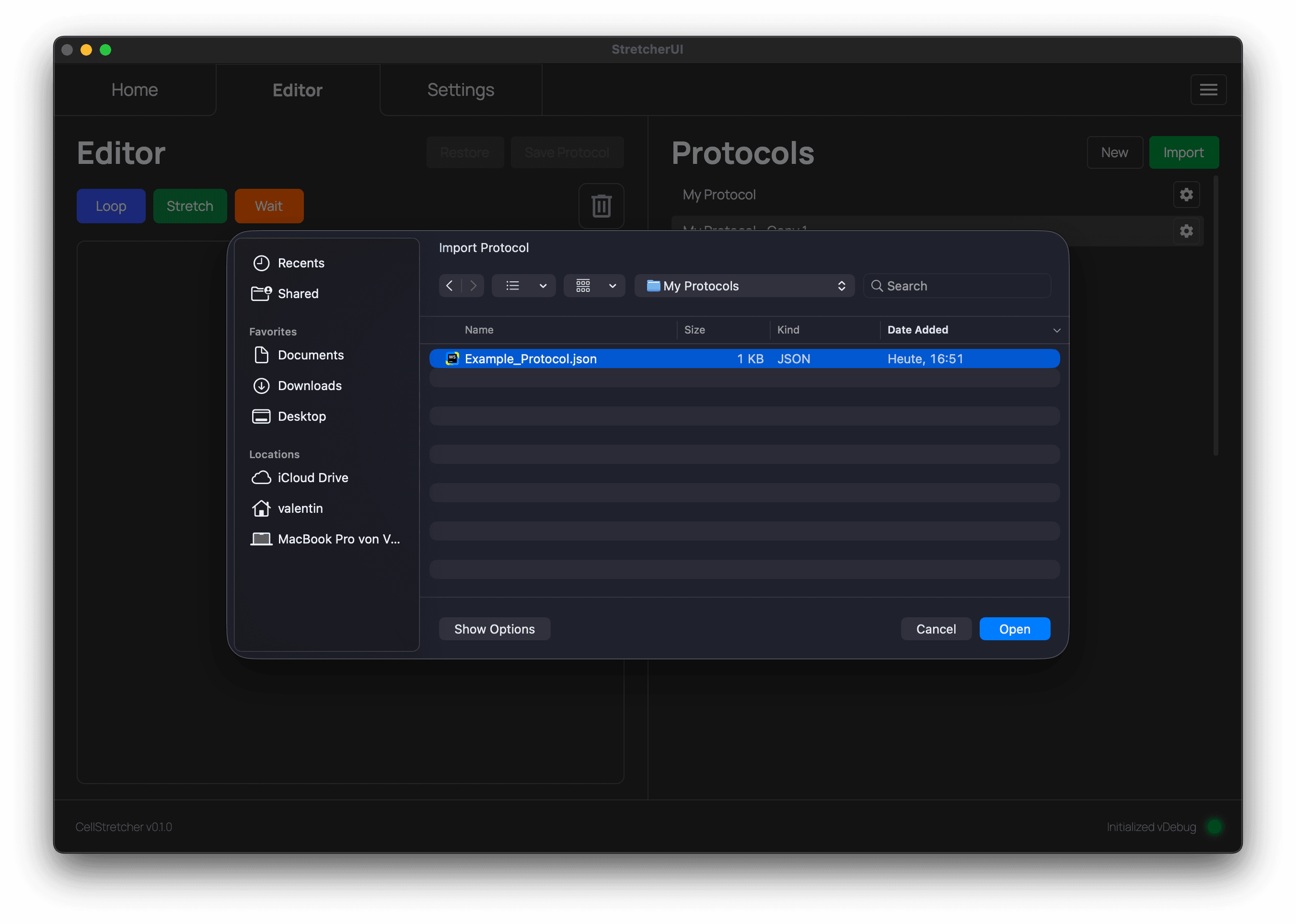
Creating and importing
To create a new protocol, simply press the "New" button. Alternatively, you can use the "Import" button to load an existing protocol from a saved JSON file.
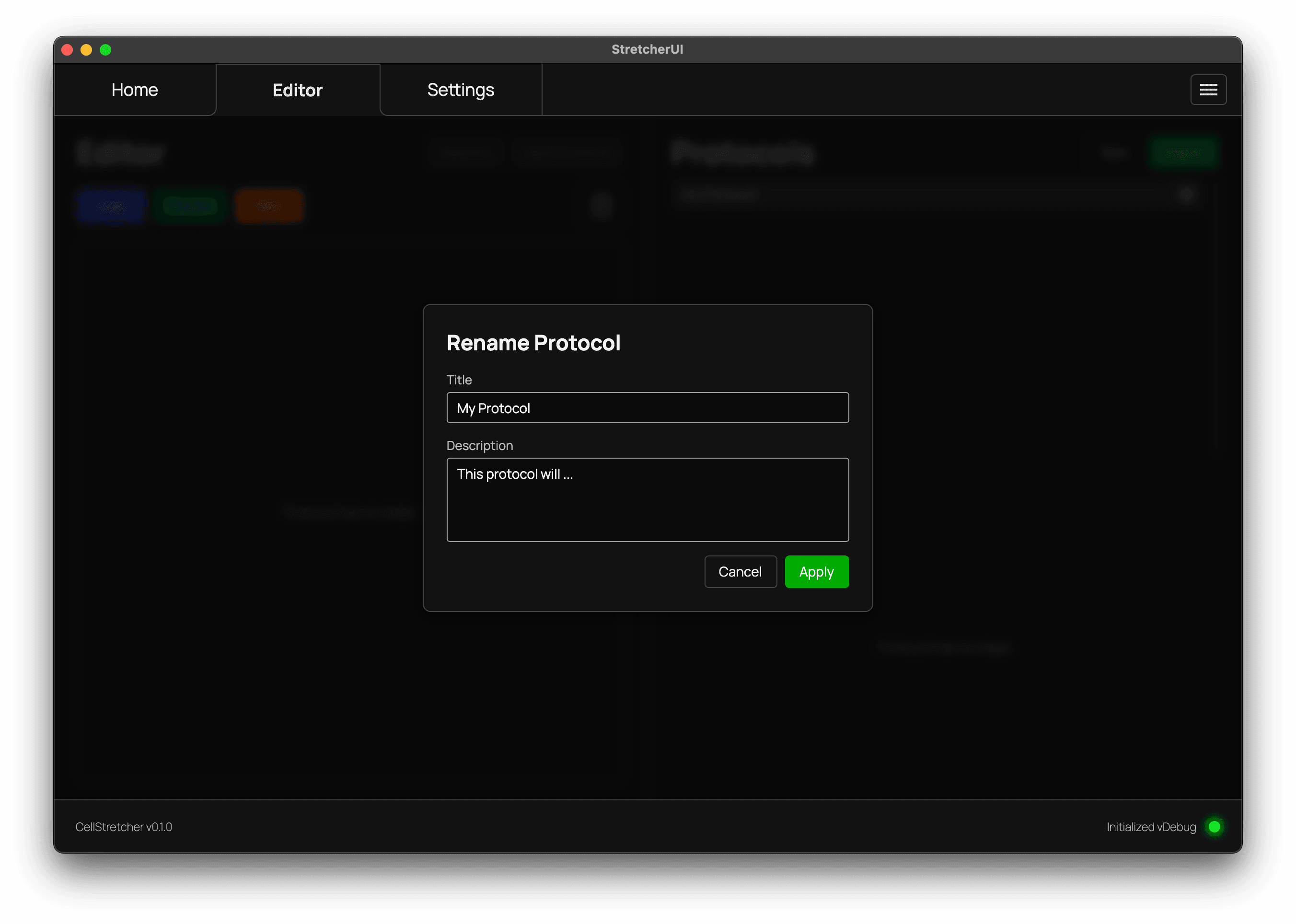
Renaming
Each protocol can be renamed and given a description. The name is a unique key, so no two protocols can share the same name. To edit a protocol, press the "Cog" icon and select the "Rename" option.
Duplicating
If you want to create a slightly different variant of an existing protocol, use the "Duplicate" option to make a copy that you can then adjust.
Exporting
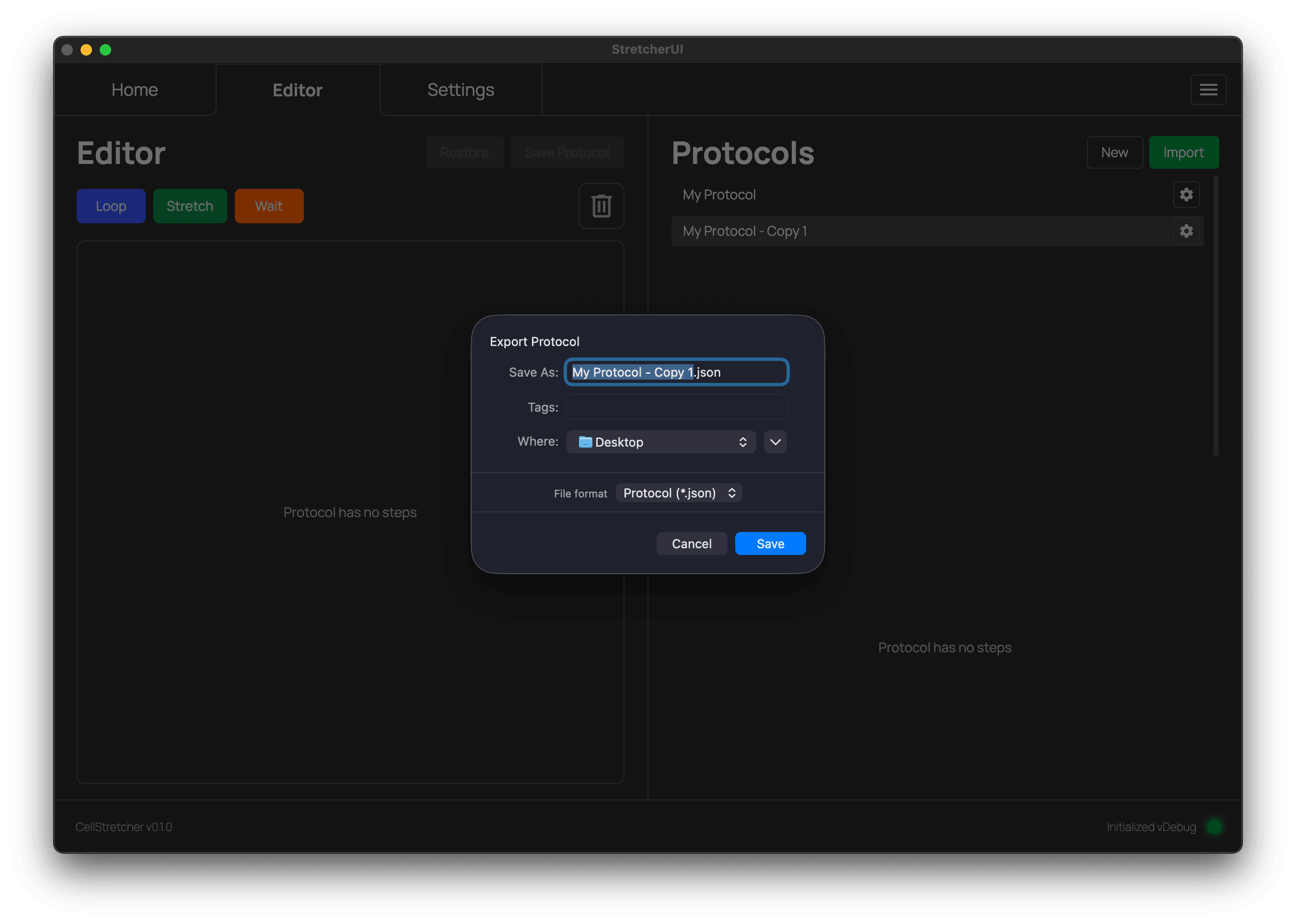
Just as protocols can be imported, they can also be exported. This is useful when you create protocols on a different device than the one you execute them on.
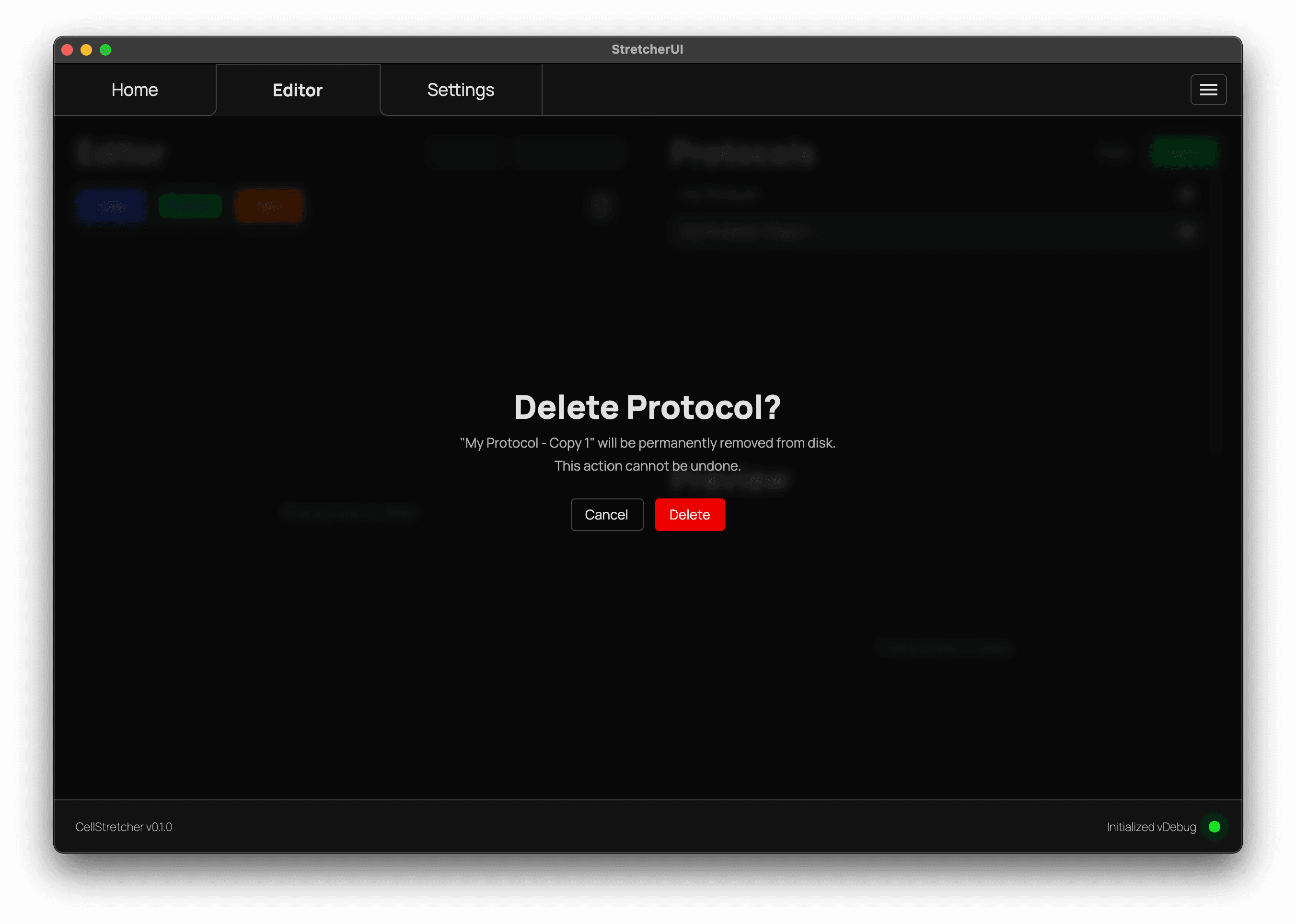
Deleting
Each protocol can be deleted. Because this is a destructive action, it is protected by a confirmation dialog.